 Oplæs
How to get Kindle to read to you
In the Kindle app on an iPhone, iPad, Android phone, Mac or Fire tablet, open the book, tap the top of the page, tap Aa, choose More and turn on Assistive Reader. A player appears at the bottom of the screen. Tap play, and the app reads the book in your device’s own voice and highlights the words as it goes. Newer Kindle e-readers have the same switch. It only works with books that have Enhanced Typesetting; if yours doesn’t, the iPhone’s Speak Screen will read whatever is on the screen.
Which way works on your device
Amazon has three ways to read a Kindle book aloud, and your phone has a fourth. They all use a computer voice. For a human narrator you need the Audible audiobook, which costs extra.
Four ways to hear a Kindle book
Kindle app
iPhone, iPad, Android, Mac, Fire tablet
Aa › More › Assistive Reader
Kindle e-reader
Kindle (11th gen. and newer), Scribe, Colorsoft
Aa › More › Assistive Reader
Alexa
Echo and other Alexa devices
“Alexa, read my Kindle book”
Speak Screen
iPhone and iPad
Swipe down with two fingers
Turn on Assistive Reader in the Kindle app
- Open the book in the Kindle app.
- Tap the top center of the screen to show the menus, then tap Aa, the reading settings.
- Choose More and turn on Assistive Reader.
- Tap the page. The player at the bottom has play and pause, the reading speed and a button that jumps back 30 seconds.
To start somewhere else on the page, press and hold a word and tap Play. Reading pauses by itself when you open the menus or add a highlight or a note. The switch stays on until you turn it off. Amazon’s guide
Assistive Reader in four taps
- Tap the top of the page
- Tap Aa
- More › Assistive Reader
- Tap play
Which books it works with
Assistive Reader only reads books with Enhanced Typesetting. You can check before you start: on the book’s page in the Kindle Store, look for Enhanced Typesetting: Enabled in the list of features. Books you bought, borrowed through Kindle+ (formerly Kindle Unlimited) or Prime Reading, or got through Family Library all count, as long as they have it.
It’s your phone or tablet’s own text-to-speech voice doing the reading, so the book has to be in a language the device can speak. Don’t expect it to sound like an audiobook.
On a Kindle e-reader
The Kindle (11th generation and newer), Kindle Scribe and Kindle Colorsoft have Assistive Reader too, behind the same Aa › More switch, with the same player. It reads books in English, Spanish, French, German and Italian. A Kindle e-reader has no speaker, so pair Bluetooth headphones or a speaker first. Amazon’s guide
Older Kindles have VoiceView, a screen reader for blind readers. It reads books too, over Bluetooth headphones, but it also speaks every menu and button, so it takes some getting used to. Amazon’s VoiceView guide
Ask Alexa to read your Kindle book
On an Echo or another device with Alexa built in, say “Alexa, read my Kindle book”, or name the book. While it reads, you can pause, skip by chapter, make it read faster or slower and set a timer for it to stop, which is handy at bedtime. Amazon calls this Kindle Assistive Reader too, and you can also turn it on under accessibility in the Alexa app. It doesn’t work on Alexa+, and not every book is supported, so check the list in the Alexa app. Amazon’s guide
When your book isn’t supported: Speak Screen
The iPhone can read any screen aloud, the Kindle app included. Turn it on once under Settings › Accessibility › Read & Speak › Speak Screen (on iOS 17 and 18 it’s under Spoken Content). Then open the book and swipe down from the top of the screen with two fingers. A small panel appears with pause and speed controls.
Speak Screen reads what’s on the screen, so if it stops at the end of a page, turn the page and swipe down again. It works in any language your iPhone has a voice for. More in how to make your iPhone read text aloud. Apple’s guide
A real narrator: Audible
Many Kindle books have an Audible audiobook to go with them. If you own both, you can switch between reading and listening and pick up where you left off, either in the Audible app or from the Kindle book’s More menu. Amazon calls it Read & Listen; it used to be Whispersync for Voice. You do have to buy the audiobook on top of the ebook, but then a real person reads it to you. Audible’s guide
What about Oplæs?
I made Oplæs, the app behind this website, and it can’t open Kindle books: they’re copy-protected and only open in Amazon’s own apps and devices. Oplæs reads ePub books and PDFs without copy protection, articles from Safari and photos of printed pages, in natural English and Danish voices that run on the iPhone. It highlights each word as it goes and remembers where you stopped. It costs $4.99, and you pay once.
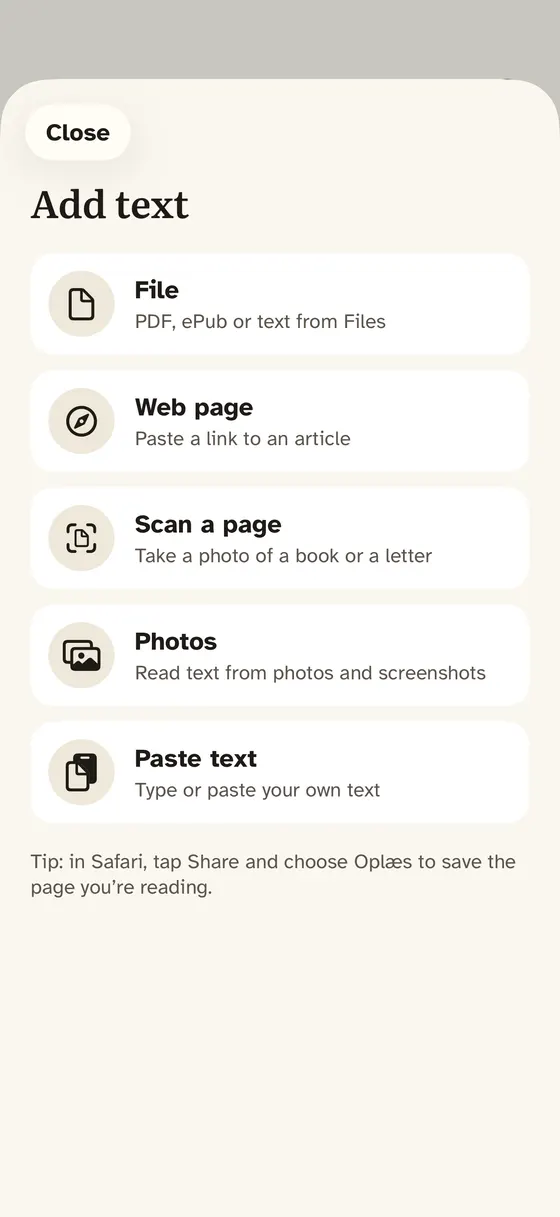 1Your own ePub and PDF files2Photos of printed pages
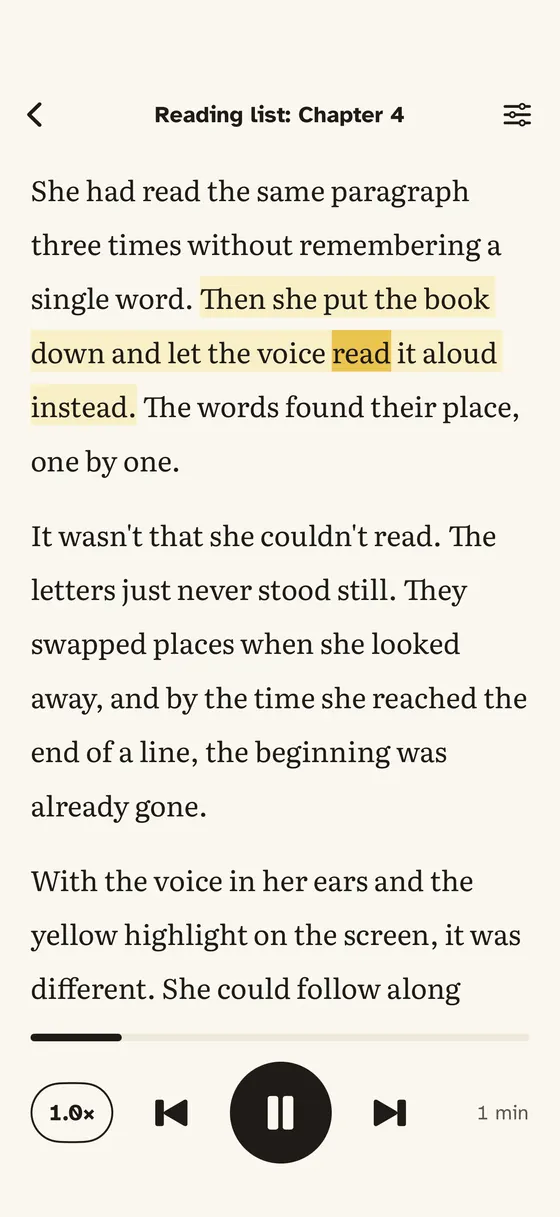 3Every word highlighted4Reading speed
- Your own ePub and PDF files
- Photos of printed pages
- Every word highlighted
- Reading speed
Reading in Apple Books instead? See how to make Apple Books read aloud.